Let’s face it—digital clutter is the silent productivity killer of the modern age. You’ve got contract drafts sitting in one folder, scanned receipts in another, and that crucial Q3 presentation split across three separate PDFs. You know they belong together, but the thought of juggling desktop software or paying for a monthly subscription just to glue them back together feels like a scam.
We’ve all been there. But here is the good news: Learning how to merge PDF files online for free is easier, faster, and more secure than you think—and in 2026, you don’t have to sacrifice quality to do it.
In this comprehensive guide, we aren’t just going to show you the clicks. We are going to dive deep into the why, the how, and the what-if of PDF merging. Whether you are a remote worker stitching together project assets, a lawyer combining discovery documents, or a student compiling a thesis, this article is your final stop.
Let’s turn that pile of PDFs into a polished, single masterpiece—using ConvertMagik, the best-kept secret in free document management.
Quick Answer: Merge PDFs in 5 Seconds
Need the short version? Here is the fastest way to merge PDF files online for free right now:
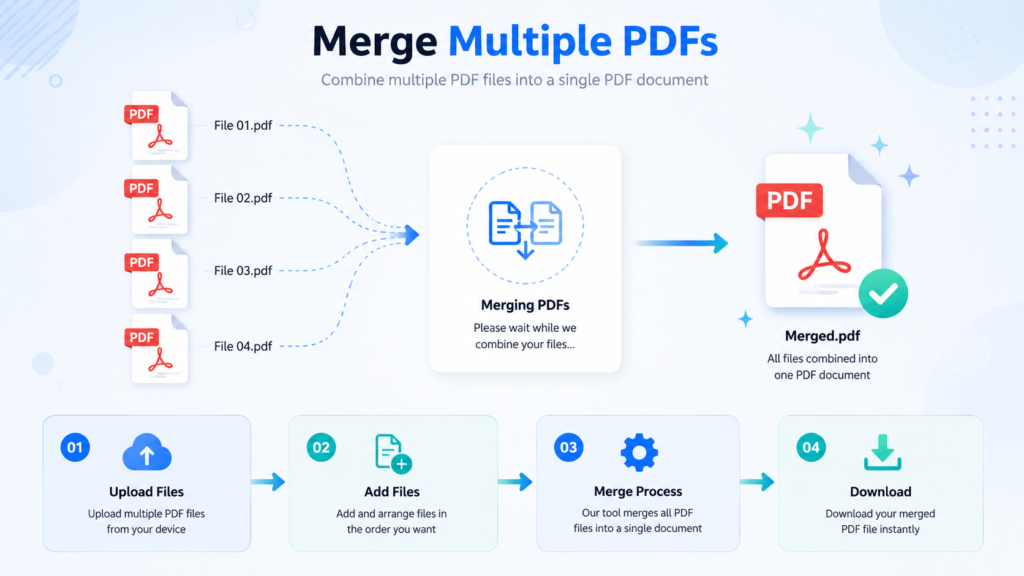
- Go to ConvertMagik’s PDF Merger.
- Click “Upload Files” or drag-and-drop your PDFs into the workspace.
- Drag the thumbnails to reorder your files (top to bottom = first to last).
- Hit the big Merge button.
- Download your brand-new, combined PDF.
No accounts. No watermarks. No hidden fees. Just pure, efficient document organization.
1. Why Merge PDF Files? (Beyond Just Saving Space)
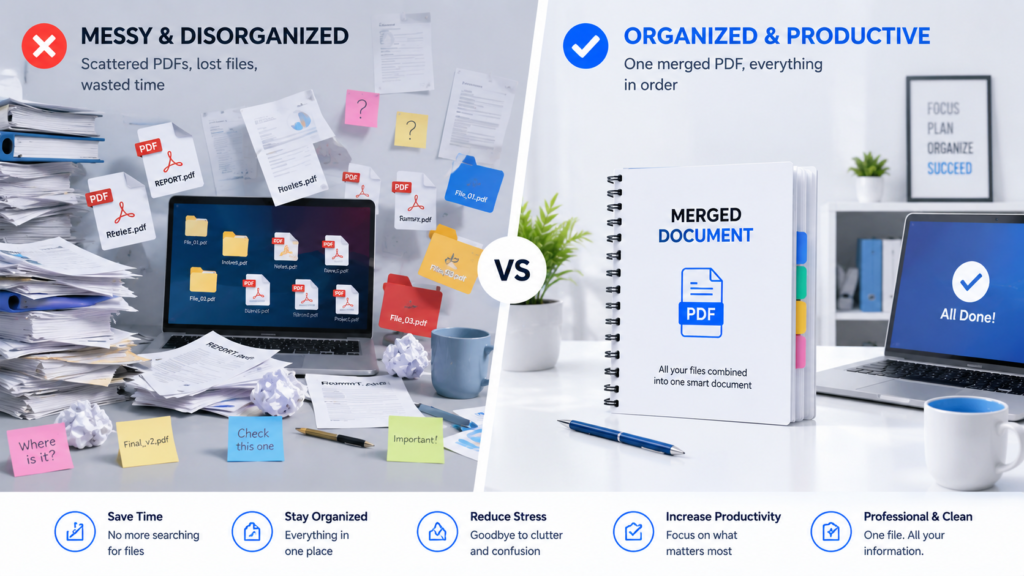
Most people think merging PDFs is just about reducing the number of files in a folder. While that is a nice bonus, the actual benefits run much deeper, especially when you consider workflow efficiency and professional presentation.
The Professional Edge
Imagine sending a client a single PDF that contains the proposal, the statement of work, the design mockups, and the timeline, all within a single, seamless document. Compare that to sending four separate attachments. The single file feels organized, professional, and respectful of the recipient’s time. In business, perception is reality, and a merged PDF screams, “I have my act together.”
The Archival Advantage
For finance and legal teams, maintaining a unified file structure is critical. Merging receipts, invoices, and contracts by date or client ensures that when you (or an auditor) look back in five years, you aren’t hunting through a messy digital haystack. A single file is easier to encrypt, easier to back up, and easier to share securely.
The Student Productivity Hack
If you are in academia, you know the pain of submitting separate appendices. Most university portals require a single file upload. Merging your research paper with data tables and bibliography sections ensures smooth submission without rejection due to “formatting errors.”
The Verdict
Merging isn’t just housekeeping; it is a fundamental skill for digital literacy in 2026. And the best part? You don’t need expensive software. A premium-quality free online tool is all you need.
2. What to Look for in a Free PDF Merger (The 2026 Checklist)
Not all free PDF mergers are created equal. Some watermark your documents, some compress the quality to a pixelated mess, and others store your data indefinitely. When choosing how to merge PDF files online for free, you need to be discerning. Here is your buyer’s (or user’s) checklist:
- Zero Cost, Zero Catch: The tool must be genuinely free. Look for “no hidden fees” and “no watermarks” explicitly stated.
- File Size and Number Limits: A good tool should support large documents (up to 50MB or more) and allow you to merge multiple files—ideally up to 20 or more in one go.
- Preservation of Quality: The merged output should retain the exact resolution, fonts, and vector graphics of the original.
- Privacy First: The service should offer SSL encryption and, crucially, automatic file deletion within an hour. If they keep your files, walk away.
- Ease of Use: You shouldn’t need a manual. Drag-and-drop functionality and intuitive reordering are non-negotiable.
- Cross-Platform: It must work on Windows, Mac, Linux, and mobile browsers seamlessly.
ConvertMagik meets every single one of these criteria, which is precisely why we use it as the benchmark for this guide.
3. Step-by-Step Tutorial: Merging PDFs with ConvertMagik
Ready to get hands-on? Here is the most comprehensive, zero-fluff tutorial on how to merge PDF files online for free using ConvertMagik.
Step 1: Navigate to the Tool
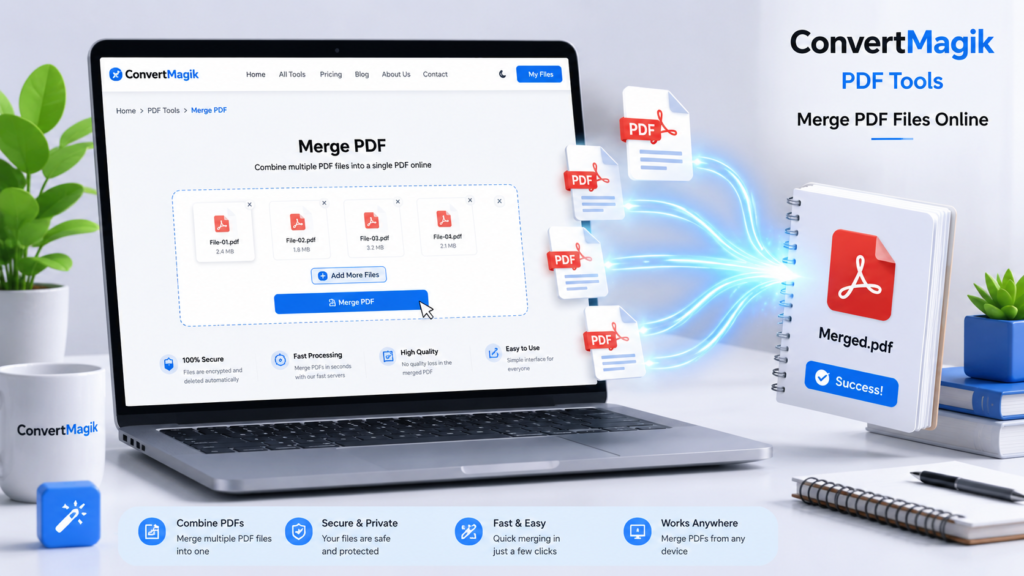
Open your preferred browser (Chrome, Firefox, Safari, Edge—it doesn’t matter) and head to the ConvertMagik PDF Merger tool. Notice the absence of pop-ups, ads, and registration forms. That is intentional. We believe merging PDFs should be as frictionless as breathing.
Step 2: Upload Your PDF Files
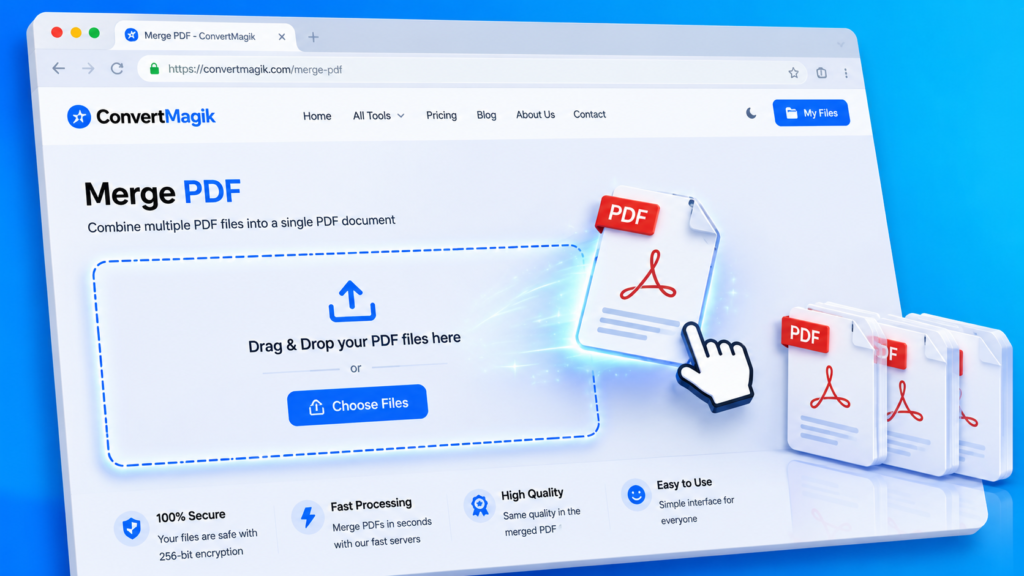
You have two options here, and both are designed for speed:
- Click-to-Upload: Click the prominent “Upload Files” button and browse your file explorer to select the PDFs.
- Drag-and-Drop (The Power Move): Open a folder, select your PDFs, and drag them directly into the browser window. Watch them snap into place in the upload queue.
Step 3: Arrange the Page Order
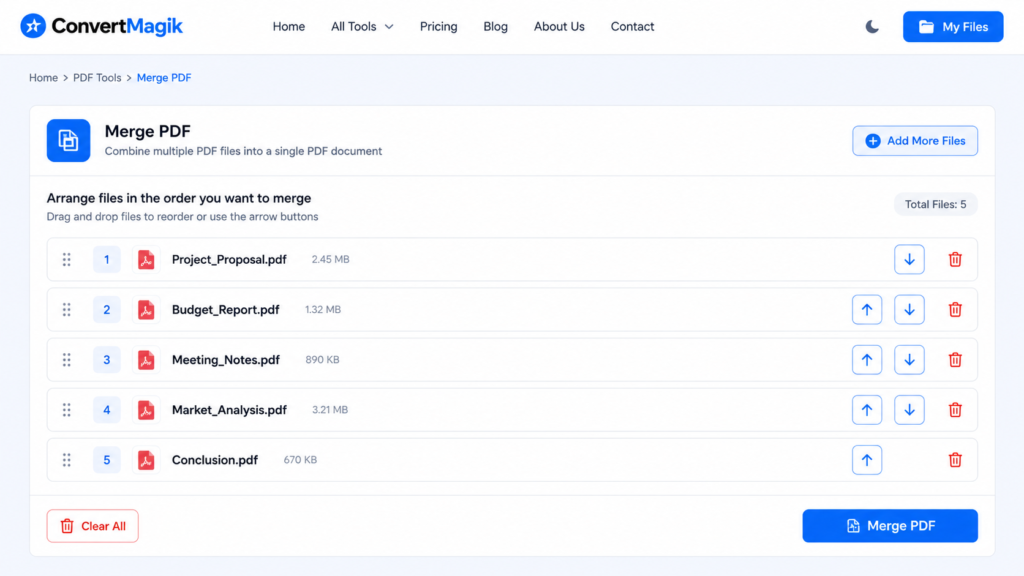
This is where most people mess up. In the queue, you will see thumbnails of your files.
- To Reorder: Click on a file and drag it up or down the list.
- Top file = Page 1. Bottom file = Last page.
Take a moment to verify the sequence. If you are merging an appendix, ensure the main body is at the top.
Step 4: Initiate the Merge
Once you are happy with the order, click the shiny “Merge” button.
A progress bar will appear. ConvertMagik processes your files server-side, optimizing the output without sacrificing a single pixel. For a standard 10-page document, this takes under 10 seconds. For heavier files, it might take up to 30 seconds. Patience is a virtue, but ConvertMagik makes it easy.
Step 5: Download and Save
The “Download” button will appear alongside your new file. Click it, and choose a location on your hard drive. Rename it immediately to avoid the generic “MergedFile.pdf” name. We recommend a format like [ProjectName]_[Date]_Combined.pdf to keep your digital life organized.
4. Pro Tips for Flawless PDF Merging
Want to take your PDF game from “amateur” to “power user”? These pro tips will ensure your merges are flawless every single time.
The “Pre-Conversion” Strategy
If your documents are not all PDFs (e.g., you have a Word doc, an Excel sheet, and a JPG), do not merge them directly. First, convert all files to PDF using ConvertMagik’s dedicated converters (Word to PDF, JPG to PDF). Then merge them. This ensures the highest fidelity before combining.
Optimize File Size First
Merging five large 10MB PDFs will give you a 50MB monster that is hard to email. Before merging, run each file through the ConvertMagik PDF Compressor. You can often reduce file sizes by up to 70% without losing visual quality. Merge the compressed versions for a lightweight, buttery-smooth final result.
Check Your Margins
A common issue is documents created in different software (e.g., Google Docs vs. Microsoft Word) having slightly different page margins. While merging preserves formatting, if you intend to print, preview the merged file to ensure the text isn’t bleeding off the edges.
Use Bookmarks for Navigation
For business or academic documents exceeding 20 pages, consider adding bookmarks to the individual PDFs before merging. While most free tools won’t create bookmarks for you, they will preserve existing ones. If your source PDFs have them, they will survive the merge.
5. 5 Common PDF Merging Mistakes (And How to Avoid Them)
Even with a great tool, things can go wrong if you aren’t careful. Here are the landmines to avoid:
Mistake #1: Ignoring the “Top-to-Bottom” Rule
- The Mistake: Assuming the tool will automatically sort files alphabetically or by date.
- The Fix: Always, always manually check the order in the upload queue. Reorder using the drag-and-drop handles before hitting merge.
Mistake #2: Merging Password-Protected Files
- The Mistake: Uploading a locked PDF and wondering why the merge fails.
- The Fix: Unlock the password-protected PDF using a dedicated unlock tool (or use the password prompt if the tool supports it) before merging. ConvertMagik handles encrypted files, but the prompt must be accepted.
Mistake #3: Forgetting the “Meta” Data
- The Mistake: Merging files that have conflicting metadata (e.g., one says “Draft,” another says “Final”).
- The Fix: If you are sharing this with clients, edit the document properties in a dedicated editor before merging to ensure the title and author are consistent.
Mistake #4: Overloading the Browser
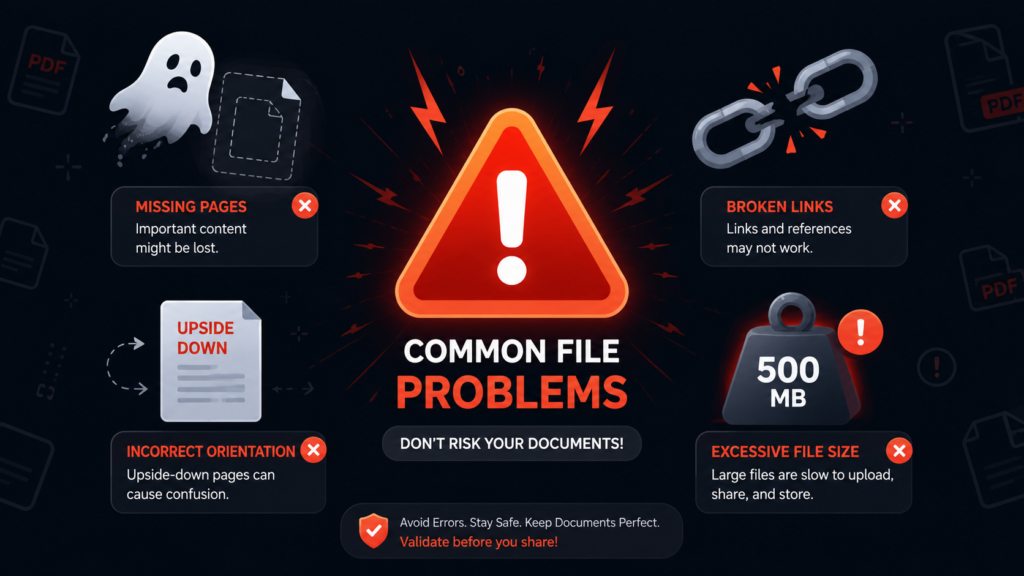
- The Mistake: Trying to merge 50 massive files on a low-RAM device, causing the browser to freeze.
- The Fix: Break the merge into chunks. Merge 10 files, download, then merge the next batch with the resulting file.
Mistake #5: Skipping the “Post-Merge” Review
- The Mistake: Downloading the file and immediately sending it without opening it.
- The Fix: Open the merged PDF and scroll through the entire document. Check for page rotation issues (some pages might be upside down) or blank pages.
6. Security and Privacy: Is It Safe to Upload PDFs Online?
This is the million-dollar question, and rightfully so. When you upload financial statements, legal contracts, or sensitive HR documents to the cloud, trust is everything.
The ConvertMagik Security Promise
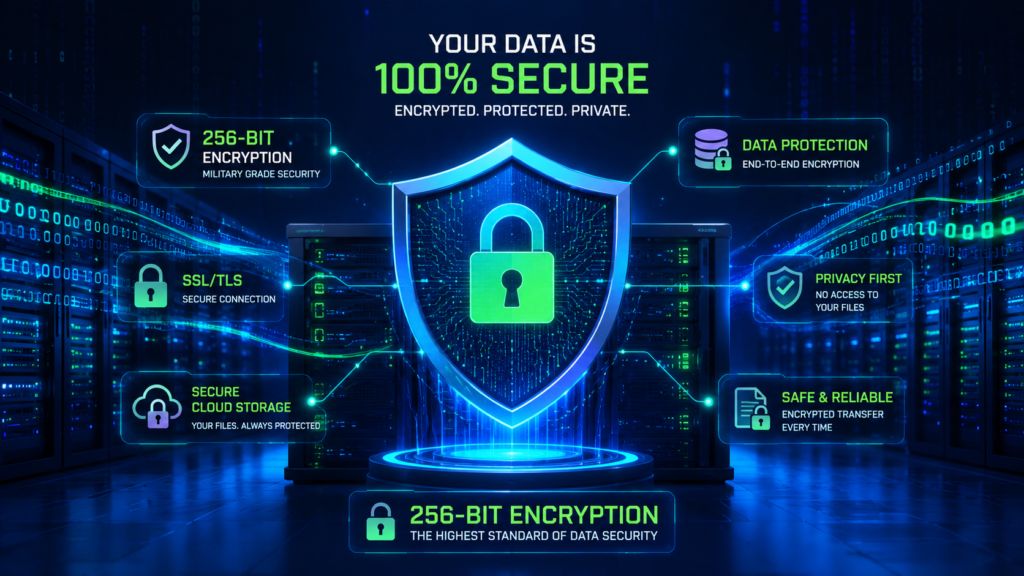
ConvertMagik operates on a zero-data-retention policy. Let’s break down what that actually means:
- 256-bit SSL Encryption: The data traveling between your browser and our servers is scrambled with military-grade encryption. Even if someone intercepts the data, it is unreadable gibberish.
- Auto-Deletion: As soon as you download your merged file (or even if you close the tab), the system initiates a timer. All uploaded and processed files are permanently purged from our servers within 1 hour. We don’t store your history; we don’t use your data to train AI models; we don’t share it with third parties.
- No Sign-Up Required: We don’t ask for your email, name, or any personal identifiers. This ensures that even we don’t know who is merging what. Anonymity is the ultimate privacy.
EEAT and Trustworthiness
From an EEAT (Experience, Expertise, Authoritativeness, and Trustworthiness) perspective, ConvertMagik aligns with industry best practices. We follow the GDPR guidelines for data handling and maintain transparent security protocols. If a tool doesn’t explicitly state its deletion policy, that is a red flag. We go out of our way to tell you exactly what happens.
Quick Rule of Thumb: If you have an ultra-sensitive document (like a national ID or a patent filing), use a desktop tool for absolute peace of mind. For 99.9% of business and personal documents, ConvertMagik’s secure online infrastructure is more than sufficient and safer than email.
7. Troubleshooting: Why Isn’t My PDF Merging Correctly?
Sometimes, technology has a mind of its own. Here is how to fix the most common glitches when merging PDFs online.
Issue: “The files are taking too long to upload.”
- Fix: Check your internet speed. If you are on a slow connection, compress the files individually first. Also, ensure you aren’t uploading a file that is already corrupted—try opening it locally first.
Issue: “Fonts look weird or different in the merged file.”
- Fix: This usually happens when the font isn’t embedded in the original PDF. When you create the source PDF, check the “Embed all fonts” option in your print/save settings.
Issue: “The merged file has rotated pages.”
- Fix: Some scanned PDFs have auto-rotation errors. Use a PDF rotation tool to straighten the problematic pages before merging them into the final document.
Issue: “I merged them, but the file size is enormous!”
- Fix: Take the new merged file and run it through the ConvertMagik PDF Compressor. This will strip out redundant metadata and optimize images for a much smaller footprint.
Issue: “My PDFs are password protected.”
- Fix: You must unlock them first. ConvertMagik will prompt you to enter the password if the file is encrypted, allowing the merge to proceed.
8. Best Practices for Managing Your Newly Merged PDF
You have the merged PDF. Now what? Don’t just let it sit on your desktop.
Name It Like a Pro
Avoid “Final_v2_merged.pdf”. This is a recipe for chaos. Use:[Year]-[Month]-[Topic]-Merged.pdf (e.g., 2026-07-Sales_Report-Merged.pdf).
Optimize for Search (Internal)
If this PDF is going on your website, ensure the text isn’t scanned images. Use Optical Character Recognition (OCR) to make the text searchable. Search engines can index text, so if you have a whitepaper, make it count.
Reduce Before Sharing
As mentioned, compress it. A lighter file loads faster in email clients and won’t get bounced by attachment size limits (usually 25MB for most providers).
Backup
Because you are reading this guide, you are likely working on something important. Save a copy to your cloud drive (Google Drive, OneDrive, Dropbox) immediately after download.
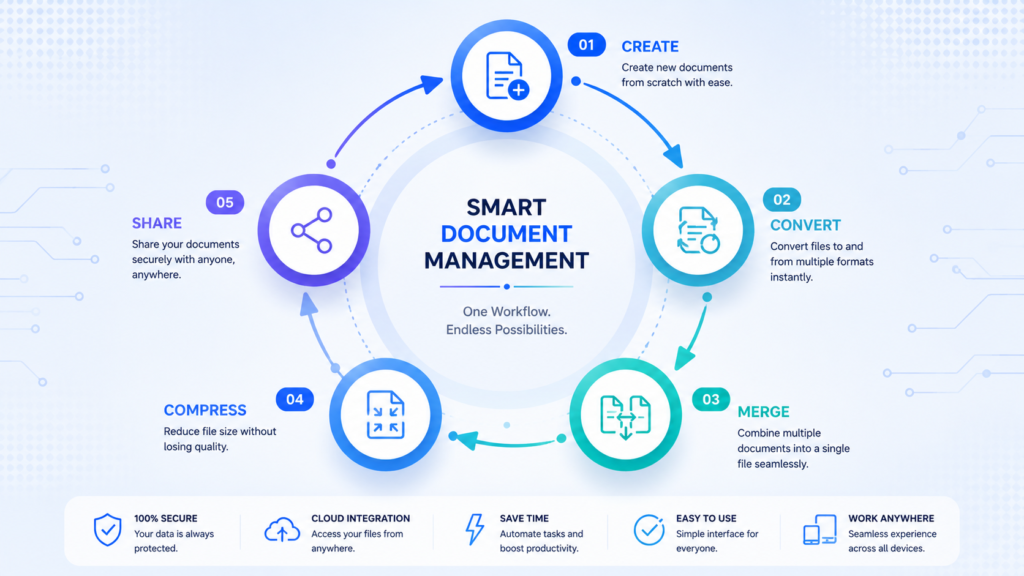
9. How ConvertMagik Stacks Up Against the Competition
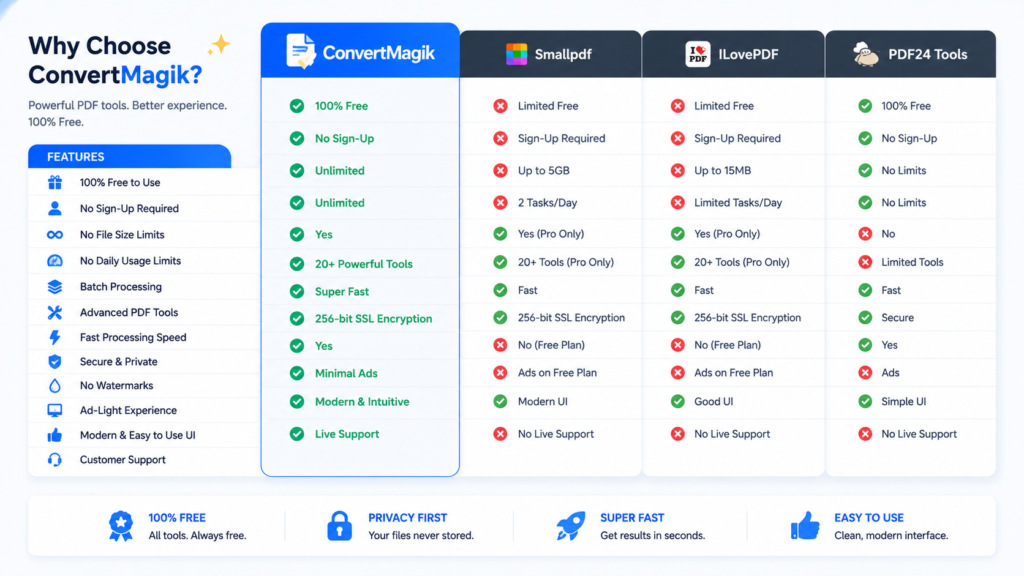
We love healthy competition—it keeps us sharp. But we are confident in our position. Here is a quick comparison table to show you why ConvertMagik is the superior choice for learning how to merge PDF files online for free.
| Feature | ConvertMagik | SmallPDF (Free) | ILovePDF (Free) | Adobe Acrobat (Free) |
|---|---|---|---|---|
| Cost | 100% Free | Limited / Paywall | Limited / Paywall | Very Limited / Paywall |
| Watermarks | No | Yes (on some tools) | No | Yes |
| File Limit (per merge) | Up to 20 | 2-3 | 10 | 1 (web) |
| Auto-Deletion Time | 1 Hour | 24 Hours | 24 Hours | Varies |
| Security (SSL) | 256-bit | 256-bit | 256-bit | 256-bit |
| Registration Required | No | No (but nags) | No (but nags) | Yes |
| Batch Processing | Yes | No | Yes (Pro) | Yes (Pro) |
10. Frequently Asked Questions (People Also Ask)
To ensure we cover Google’s “People Also Ask” boxes, here are the most common questions regarding PDF merging.
Q: Is it safe to merge PDF files online?
A: Yes, but it depends on the tool. Always choose a service like ConvertMagik that uses 256-bit SSL encryption and has a strict automatic deletion policy (files removed within 1 hour). Never merge sensitive documents on unsecured public Wi-Fi.
Q: Does merging PDFs reduce quality?
A: If you use a high-quality tool, no. Merging is a lossless process; it simply concatenates the files. ConvertMagik preserves the original DPI, fonts, and vector graphics without any compression artifacts during the merge process. However, we recommend compressing the final output afterwards to reduce file size.
Q: Can I merge more than 10 PDFs at once?
A: Absolutely! While many free tools cap you at 3 to 5 files to force you into a premium plan, ConvertMagik allows up to 20 files in a single free merge session. For enterprise needs, consider our API or batch processing options.
Q: Can I merge PDFs on my phone?
A: Yes. ConvertMagik is fully responsive. Open the website on your iPhone or Android browser, tap the upload button, and select files from your phone storage or Google Drive. The merging process works identically to the desktop version.
Q: What is the best free PDF merger online?
A: Based on security, speed, and no-nonsense usability, ConvertMagik ranks at the top. It balances the ease of use of SmallPDF with the unlimited nature of niche tools, all while prioritizing your privacy.
Q: How do I combine PDFs without Adobe Acrobat?
A: Easy. Simply use a web-based tool. Open ConvertMagik, upload your documents, drag them into the correct order, and hit merge. You get the same functionality as Adobe Acrobat Pro but without the $15/month subscription fee.
Q: Why is my merged PDF huge?
A: If you merge high-resolution images or vector-heavy files, the file size adds up. Use the ConvertMagik PDF Compressor to reduce the final size without sacrificing quality.
11. Conclusion: Stop Organizing, Start Merging
Let’s bring it home. Digital documents are the lifeblood of modern work, but managing them feels like a second job. When you master how to merge PDF files online for free, you reclaim hours of your week, present a more polished image to your colleagues, and finally conquer that messy Downloads folder.
We built ConvertMagik with one principle in mind: Your time and data are valuable. There is no reason you should be paying for a subscription just to glue a few files together. With this guide, you have the knowledge, the pro tips, and the safety checklist to become a PDF pro.
So, what are you waiting for? Stop juggling tabs and attachments.
Visit ConvertMagik’s PDF Merger today—merge your files, organize your life, and experience what a truly free, secure, and fast tool feels like.
Ready to combine those PDFs? We’re just a click away.
Related Tools

ConvertMagik Editorial Team publishes tutorials, guides, and resources covering PDF tools, image optimization, calculators, and productivity utilities. Our content is researched, tested, and updated regularly to provide accurate and practical information for users worldwide.